














Integrating LightBurn into the Australian School Laser Curriculum
Digital fabrication in schools must move beyond the creation of mere trinkets. It is a powerful vehicle for teaching Design Thinking and established practical workflows. A successful curriculum shifts the focus from simple "test cuts" to student-driven, iterative problem-solving.

The Modern D&T and IT&D Revolution
The modern school workshop in Australia is undergoing a significant revolution. Traditional manual skills are being augmented by, and sometimes replaced with, digital fabrication. At the heart of this shift is the laser cutter—specifically when paired with industry-standard software like LightBurn.
When educators ask, "We’ve just installed a CO₂ laser; what software should we use?" the answer is almost universally LightBurn. It has become the definitive choice for educational settings, expertly bridging the gap between a student's initial concept in CAD (Computer-Aided Design) and the final physical fabrication via CAM (Computer-Aided Manufacturing).
Digital fabrication in schools must move beyond the creation of mere trinkets. It is a powerful vehicle for teaching Design Thinking and established practical workflows. A successful curriculum shifts the focus from simple "test cuts" to student-driven, iterative problem-solving.

This guide is designed for high school teachers, Makerspace coordinators, and IT&D Heads who are new to digital fabrication, providing a tutorial-style approach to integrating CAD/CAM principles using LightBurn.
[Image suggestion: A sharp photo of Liam (from image_0.png) looking closely at a design on a computer screen running LightBurn, with the laser active in the background]
Key Learning Outcomes by Year Level (Australian Curriculum)
To successfully integrate LightBurn into the Australian Technologies curriculum (F-10) or VET Engineering pathways, it is helpful to map the software's capabilities to the expected learning outcomes for different Year Levels. This ensures a logical progression of skills, moving from basic operation to complex, multi-software engineering workflows.
The following chart outlines how teachers can structure this progression:
| Year Band (F-10) | Focus Area | Skill Development | Example LightBurn Project | Digital Skills (CAD/CAM) |
| Primary (Years F-6) | Introduction to Fabrication | Safe operation (observational), understanding basic vector shapes, introduction to raster engraving vs. vector cutting. | Personalised Name Bookmark | Simple shapes, basic text alignment, assigning different colours/layers for cut vs. engrave. |
| Years 7-8 (Junior Secondary) | Design Thinking & Iteration | Rapid prototyping, material nesting, multi-part assembly (press-fit), 2D CAD manipulation. | Modular Desk Organiser or Handwritten Recipe Cutting Board | Using 'Trace Image' for analog data, nesting parts to reduce waste, testing tolerances with a 'kerf' check. |
| Years 9-10 (Secondary) | Advanced Engineering & Prototyping | Complex technical drawing, integrating external CAD data, parametric design principles, batch production. | Modular Robotic Arm Component or Working Mechanical Clock | DXF/SVG import from Fusion 360/SolidWorks, advanced Boolean operations, optimizing for batch production. |
Enhancing classroom engagement and management
Once the basics of CAD/CAM are integrated, teachers can use LightBurn to solve common classroom challenges and deepen student engagement.

1. The "Cardboard First" Prototyping Rule
To save on material costs and instill a professional engineering mindset, implement a strict "Cardboard First" policy for all multi-part assemblies.
-
The Workflow: Students must prove their press-fit tolerances, interlocking joints, and overall dimensions using upcycled corrugated cardboard (from shipping boxes) before they are permitted to cut in premium plywood or acrylic.
-
Educational Value: This forces rapid iteration. Students quickly learn that a 3mm slot designed in CAD might need to be 3.2mm in reality due to the laser’s kerf (material removed by the beam). Adjusting the design in LightBurn after testing in cardboard is a low-stakes, high-learning activity.
2. Laser Certification "Badges"
Manage lab access and motivate students by creating a tiered laser certification system using laser-cut badges or tokens.
-
Level 1 (Observer): Engraved token acknowledging safety training completion. Student can observe and design, but not operate.
-
Level 2 (Supervised Operator): Engraved and cut badge. Student can operate the laser with a teacher present.
-
Level 3 (Independent Operator): Distinctive layered acrylic badge. Senior students (Years 11-12) who have demonstrated mastery can operate independently and mentor Level 1 students.
[Image suggestion: The intricate layered ornament Sarah is watching closely in image_0.png, re-imagined as a student 'Level 3 Operator' badge]
3. Digitizing the D&T Portfolio
Use the laser cutter to connect physical projects back to digital documentation required for assessment.
-
Project: Have students design and engrave a custom QR code onto their final physical prototype.
-
The Link: The QR code can link directly to their online design portfolio (e.g., Google Sites, Seesaw), a video reflection of their design process, or their CAD files. This seamlessly merges the physical and digital aspects of their Industrial Tech assessment.
Walkthrough: Setting Up a "Classroom" Project in LightBurn
For this tutorial, we will use a common and highly successful project: a personalized handwritten recipe cutting board—a sentimental gift project that students take immense pride in, perfect for Mother’s Day or Father’s Day.
Prerequisites for Your Setup
-
LightBurn Education Setup: Ensure your license is activated on school computers.
-
Device Setup: Connect your computer to the laser (via USB or Ethernet). In LightBurn, click 'Devices' > 'Find My Laser'. The software should automatically detect your laser machine.
The Workflow: Design to Cut
1. Conception and Design (CAD Phase)
A successful concept starts outside of LightBurn. For this project, students must source a physical handwritten recipe.
2. Bringing Data into LightBurn (The Tutorial)
-
A. Scan or Photograph the Recipe: Obtain a high-contrast scan or clear photograph of the handwriting.
-
B. Import: In LightBurn, go to
File > Importand select the image (JPG/PNG). -
C. Trace Image (The CAM Power Move): Students often make the mistake of trying to raster engrave a low-resolution photo, which results in poor quality. Instead, use the Trace Image tool.
-
Right-click the imported image and select
Trace Image. -
Adjust the 'Threshold' slider until only the black ink is captured. You should see a purple vector outline.
-
Click 'OK'. You now have vectors—mathematically defined lines that the laser can engrave with precision.
-
3. Assigning Power and Speed (The CAM Phase)
This is where students learn the essential manufacturing difference between a Cut and an Engrave.
-
Select the traced recipe. In the 'Cuts / Layers' window (usually on the right), assign it a color (e.g., Red).
-
Double-click the Red layer. In the Layer Settings, change the 'Mode' to Fill.
-
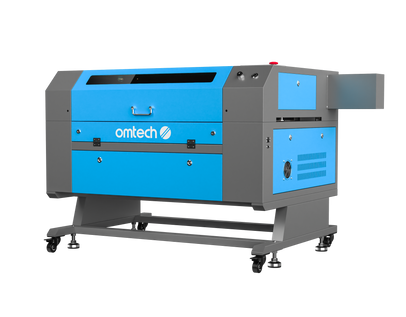
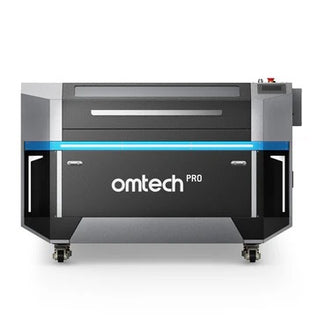
Settings: This depends on your laser’s wattage (e.g., a common 80W OMTech), but for engraving acacia or bamboo: Try Speed: 300 mm/sec, Max Power: 25%. Always encourage students to run a small test cut on a scrap piece first. This is a vital lesson in material costs and precision.
4. Project Setup (Digital Fabrication Curriculum)
-
Workspace: In
Edit > Device Settings, input the correct working bed dimensions of your laser (e.g., 600mm x 400mm). This ensures students design within the physical limitations of the machine. -
Job Origin: Use 'User Origin' for most projects. Position your material in the laser bed and use the 'Frame' feature to ensure the laser beam will fire only onto the board.
[Image suggestion: The personalized handwritten recipe cutting board (similar to image_0.png) in the foreground, with the laser actively engraving another project in the midground]
5. Creating and Executing ( Fabrication in Action)
-
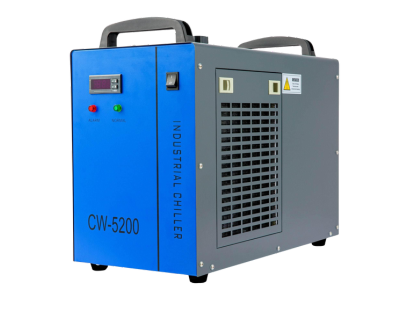
Ensure your fume extraction and water chiller are active.
-
Final Inspection: Have students perform a "dry run" using the 'Framing' function one last time.
-
Click Start.
Digital Fabrication Beyond the Classroom
By integrating LightBurn and OMTech lasers into your curriculum, you aren't just teaching software; you are teaching the fundamentals of modern engineering workflows. When students make for a reason—to make a highly engaging gift project for someone they care about—they take ownership. This structured approach—moving from Trace Image to Fill settings—moves students away from passive technology consumption toward confident digital creation.