












Laser Engraving Speed Chart: Understanding Optimal Laser Speed Settings
Laser cutters are quickly becoming the machines of choice for home hobbyists and small business owners who want to create beautiful custom items rapidly and efficiently. For the DIY enthusiast, laser machines are a way to forge memorable gifts and customized items for friends and family to cherish. Small business owners can utilize laser cutters' fast production speeds and precision to fabricate products for a profit. Understanding how your machine's power and speed settings affect your end product is essential regardless of your laser-cutting goals.

Laser Speed vs Power: How They Work Together
Speed and power are the two primary settings that determine engraving depth and quality. Higher power increases laser intensity, while speed controls how long the laser stays on a specific point of the material. Slower speeds deliver more energy to the surface because the beam remains longer in one spot.
For example:
| Speed | Power | |
|---|---|---|
| High speed + low power | Light marking | |
| Low speed + high power | Deep engraving | |
| High speed + high power | Fast deep cuts | |
| Low speed + low power | Barely visible engraving |
Understanding this relationship is essential because the optimal settings depend on:
-
material density
-
laser wattage
-
engraving depth
-
desired surface finish
Even two lasers with different wattage will require different settings because power percentages scale differently depending on machine wattage.
Laser Engraving Speed and Power Chart by Material
Example starting points for CO₂ laser machines:
| Material | Speed | Power | Notes |
|---|---|---|---|
| Wood (Birch plywood) | 300–500 mm/s | 30–50% | Great for engraving and cutting |
| Acrylic | 200–400 mm/s | 40–70% | Produces clean polished edges |
| Leather | 400–600 mm/s | 20–40% | Avoid burning edges |
| Slate | 300–500 mm/s | 40–60% | Produces high contrast engravings |
| Glass | 250–400 mm/s | 30–50% | Use masking tape for cleaner results |
| Anodized Aluminum | 500–800 mm/s | 15–25% | Surface marking only |
Note:
These settings are starting points only. Always run a material test grid before engraving production parts.
How to Find the Perfect Settings Using a Test Grid
The fastest way to determine optimal laser settings is to run a laser test grid.
Steps:
-
Set up a grid pattern (for example 5×5 squares).
-
Assign different speed settings to each row.
-
Assign different power levels to each column.
-
Run the engraving test.
-
Identify the square with the best balance of clarity and burn depth.
This process helps you identify the ideal speed–power combination for each material.
Breaking Down Key Variables
Speed and power are the two most critical variables you must understand when operating your laser engraving machine. This will give you a fundamental command of the items you produce and your overall experience with the device.
A crucial first step is accessing a reputable laser cutting speed and power chart. This resource can guide you as you continue your laser cutting journey. At first glance, a laser cutting speed chart may seem complex and difficult to understand. The good news is, this article can help you navigate the terminology and new information to gain more confidence with your laser-cutting machine.
Laser Speed
Laser speed is a critical aspect of a laser engraving speed and power chart. A laser beam works by melting away surface layers of materials to create your chosen design. When you guide a laser to move, it travels vertically on the Y-axis and horizontally on the X-axis to execute the pattern. When you place a piece of material on a laser cutter's workbed, the laser engraving speed setting will determine how quickly the laser beam moves on each axis and cuts the material. A faster speed equals a quicker processing time.
However, simply calibrating your settings to the fastest speed for every project will only sometimes be beneficial. If you direct your laser to move too quickly, you risk skipping over critical components of your image or not cutting deep enough. Alternatively, if you decrease speed too much, your laser will spend too much time in one place, which could burn your workpiece.
Laser Power
Laser power is another vital element in a laser engraving power and speed chart. CO2 cutters generate their lasers in a glass tube loaded with CO2 gas. As the device pumps high-voltage electricity through the tube, it interacts with the gas and produces light. The speed at which the laser emits the resulting energy is what determines the laser's power.
A laser's power is independent of its speed, although a perfectly balanced combination of the two is essential for optimal results. A laser with a higher power setting can forge deeper and darker cuts. Further, thicker materials will require more power than thinner ones. Also, if your power is too high, you could char your workpiece and create undesirable smoke.
Finding the Perfect Laser Settings for Your Project

As you can see, properly adjusting your laser engraving speed and power settings is essential to achieving the perfect cuts for your projects. However, even after you've decided what your settings should be, there are a couple of final steps you should follow.
Run Tests on Different Types of Materials
Materials can be costly, so using a scrap piece to test how they will react to your settings is wise. Testing is essential if your workpiece is unique or if you only have a small amount. The minimal portion that you sacrifice will pay off in the long run. Even if you have a lot of engraving experience, you should always test on unfamiliar materials or materials that are oddly shaped or have uneven surfaces.
Different materials will require different laser engraving speeds and power calibrations. Even if you're using different types of the same materials, their respective properties could be vastly different, severely altering your final product. For example, even though lambskin and cowhide are both types of leather, they need different laser engraving settings due to their differing qualities. Cowhide is more durable and can withstand high power, while sheepskin is too delicate for as high a power setting. You will achieve very different results if you use the same speed and power settings for these two materials.
Adjust Speed and Power Levels
Finally, if your laser engraving tests do not come out exactly as you had hoped, take the time to readjust your speed and power levels and retest. Keep an eye on things like the edges of your cuts. Smooth edges mean your settings are set correctly, while rough or jagged edges mean you need to either increase power or decrease speed.
It's also important to note that how you prepare your materials will impact how they react to laser engraving. For example, applying moisture to organic materials significantly affects their burn patterns. Dry leather can scorch or create unwanted fumes, so get it wet and supple before engraving. However, if you saturate leather too much, the lines you forge will not be crisp, and the design will look muddled. Similarly, how you condition wood will drastically affect its withstands engraving. Wood that is not sanded, cleaned, and lightly finished will get smoke burns from the laser's heat.
Experience Stellar Engraving Quality With OMTech Laser Engraving Machines
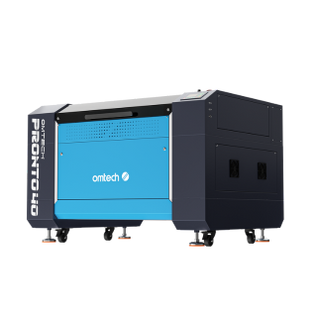
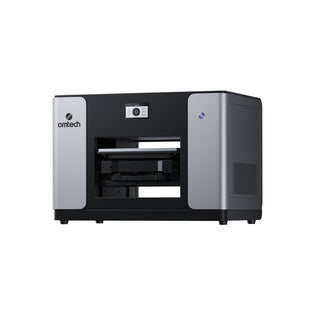
CO2 laser machines are capable of etching with accuracy and precision. Just so you know, making sure you have optimal settings for your project is only one part of the equation. Partner with OMTech and get the best products at ideal price points.
When you invest in an OMTech machine, you receive our stellar two-year warranty, exceptional customer service, and an invitation to join our fantastic laser community.
Do you have more questions about CO2 laser engraving? Visit our FAQ page or check out our blog posts. We look forward to joining you on your laser engraving adventure.
Common Laser Engraving Problems and Fixes
Engraving Too Light
Possible causes:
-
speed too high
-
power too low
-
incorrect focus
Fix:
-
reduce speed
-
increase power
-
adjust focus distance
Burn Marks Around Engraving
Possible causes:
-
speed too slow
-
power too high
Fix:
-
increase speed
-
reduce power
-
use air assist
Engraving Not Deep Enough
Possible causes:
-
insufficient power
-
high speed
Fix:
-
lower speed
-
increase power
-
run multiple passes
Why Laser Wattage Changes Speed Settings
Different laser wattages produce very different engraving results.
Example:
| Laser Power | Typical Use |
|---|---|
| 40W | hobby engraving |
| 60W | small business |
| 80W+ | production cutting |
Because higher wattage lasers deliver more energy, they can engrave deeper even at higher speeds.