















Safe and Creative Laser Projects for K12 Classrooms
A Year 7 student in our after-school makerspace cut her first piece on a 55W CO₂ laser in October. She had never used design software before Term 3. By December, she was selling laser-engraved bookmarks at the school Christmas fair for $12 AUD each. Her teacher mentioned she hadn’t shown much enthusiasm in class for nearly two years.
That story isn’t unusual.

Laser cutters in Australian K–12 classrooms have a way of pulling students in — because the feedback is immediate, tangible, and genuinely impressive. A student designs something on a screen, and ten minutes later, they’re holding it in their hands.
This guide covers the best beginner laser cutter projects for K–12 classrooms — organised by difficulty, material, and subject area. You’ll also find guidance on which OMTech CO₂ laser engravers suit Australian school environments, and exactly what to prepare before students run their first job.

Why Laser Cutters Work So Well for Beginners
Most creative tools have a gap between effort and result. Laser cutters close that gap in a way that pencils, paint, and even 3D printers don’t. The machine handles the precision — students focus on the design.
Laser cutting uses a focused beam to cut or engrave materials with high accuracy — the same process used in industrial manufacturing. In a classroom, students aren’t using a simplified version of the technology. They’re using the real thing.

That matters more than many teachers expect. There’s a credibility to laser-cut work that printed worksheets or digital-only designs simply don’t have.
REAL CLASSROOM EXAMPLE (AU CONTEXT)
A primary teacher in Melbourne introduced laser cutting into a STEAM unit on geometry. Students designed interlocking hexagonal tile patterns, cut them from basswood, and assembled them into wall panels now displayed in the school corridor. Several students who struggled with abstract concepts immediately understood geometry once they could physically build and manipulate the shapes.
The unit now runs every year.

Project Types by Year Level
| YEAR LEVEL | BEST PROJECT TYPE | BEST MATERIAL | TYPICAL LESSON TIME |
|---|---|---|---|
| Primary (Years K–6) | Ornaments, name tags, simple shapes | Cardboard, thin basswood | 45–60 mins |
| Lower Secondary (Years 7–8) | Keychains, coasters, bookmarks, signs | Basswood, cork, acrylic | 60–90 mins |
| Upper Secondary (Years 9–12) | Enclosures, models, functional parts | Plywood, acrylic, leather | 90–120 mins |
| Advanced / VET | Multi-part builds, signage | Thick plywood, dense acrylic, slate | Multi-session |
Materials Every Beginner Should Know
Material choice affects everything — cut quality, smoke, speed, and how forgiving the process is for beginners.

| MATERIAL | BEST FOR | BEGINNER FRIENDLY? | NOTES |
|---|---|---|---|
| Basswood (3mm) | Ornaments, tags, coasters | Very easy | Clean results, low smoke |
| Cork | Coasters, boards | Very easy | Minimal smoke, very forgiving |
| Birch plywood (3mm) | Signs, name plates | Easy | Occasional flame — monitor speed |
| Acrylic (3mm) | Keychains, signage | Easy | Clean polished edges |
| Cardboard / MDF | Prototypes | Easy | Low cost, watch fire risk |
| Leather | Bookmarks, bands | Medium | Avoid chrome-tanned |
| Slate | Plaques, coasters | Medium | High contrast, no smoke |
Stock tip: Start with basswood and cork — they give the cleanest results with minimal setup.
Beginner Laser Projects for Classrooms
Tier 1 — First Session (30–60 mins)
Engraved Name Tag
Students type their name, choose a font in LightBurn, and engrave onto basswood.
Teaches: text sizing, positioning, engraving vs cutting.
Wooden Coaster
A classic starter project. Students engrave initials, logos, or patterns.
Teaches: speed/power basics.
Holiday Ornament (Christmas/Easter themes)
Students explore shapes beyond rectangles.
Great tie-in with seasonal school activities.
Wooden Bookmark
Popular cross-curricular project (e.g. English — quote from a novel).
Custom Keychain
Introduces cutting paths and kerf (material removed by laser).

Tier 2 — Skill Builders (60–90 mins)
Classroom Signage
Students design signage for classrooms or labs.
Teaches layout, hierarchy, and negative space.
Science Model (Atom/Molecule)
Coloured acrylic pieces assembled into models.
Useful for Chemistry and Physics visualisation.
Architectural Model
Cardboard structures cut and assembled.
Focus on iteration and design refinement.
Slate Coaster / Plaque
High-contrast engraving — great for school fundraisers.
Laser-Cut Puzzle
Teaches tolerance and precision in design.
Tier 3 — Curriculum Projects (Multi-Lesson)
Australia Map Cutout
Students engrave states, cities, or landmarks.
Used in Geography lessons.
Geometry Manipulatives
Accurate shapes for hands-on maths learning.
Electronics Enclosure
Custom housings for Arduino or Raspberry Pi projects.
Strong fit for STEM and VET pathways.
Student-Designed Awards
End-of-year awards designed and produced by students.
REAL SCHOOL BUSINESS EXAMPLE
A secondary school in New South Wales turned their makerspace into a small student-run business. Students produced custom keychains, engraved bookmarks, and personalised gifts for parents and staff. In one year, they raised over $3,500 AUD to reinvest in classroom equipment — while learning pricing, production, and basic business skills.
Best OMTech Machines for Australian Schools
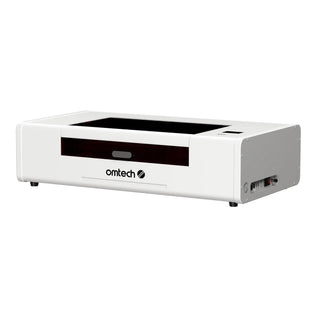
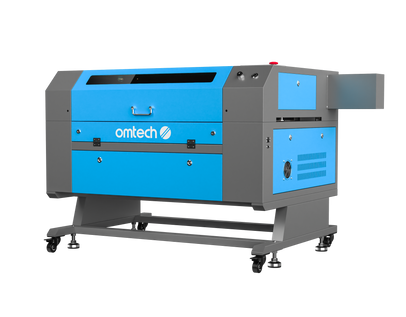
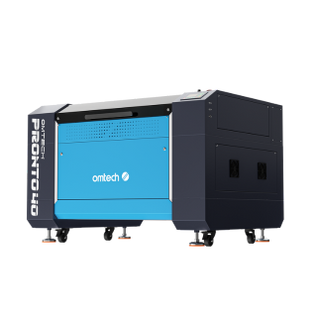
| FEATURE | POLAR LITE 55W | PRONTO 35 60W | AF2028-60 60W |
|---|---|---|---|
| Power | 55W | 60W | 60W |
| Work Area | 500 × 300mm | 400 × 600mm | 500 × 700mm |
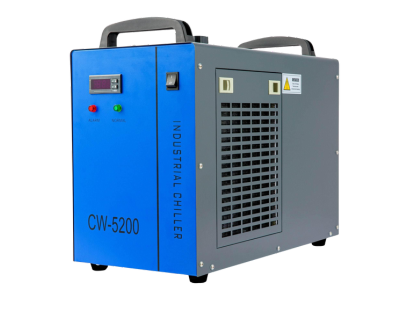
| Cooling | Built-in | External | External |
| Autofocus | Yes | Yes | Yes |
| Best For | Primary + Lower Secondary | Secondary | Senior Secondary / VET |
Polar Lite 55W — Best for Primary & Lower Secondary
- Built-in cooling (no maintenance headaches)
- Compact footprint
- Ideal for classrooms with limited space
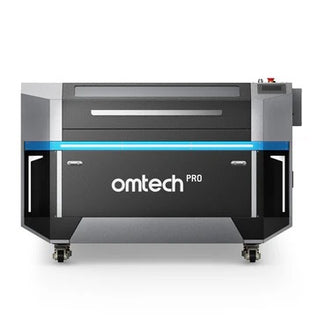
AF2028-60 — Best for Secondary & VET
- Larger bed = higher throughput
- Better for signage, models, multi-part builds
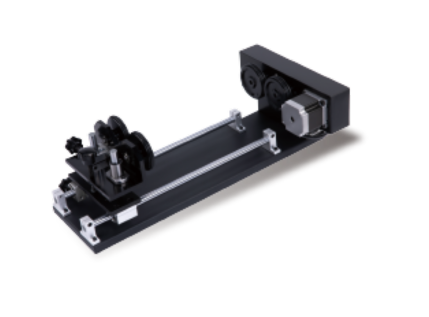
- Supports rotary engraving (e.g. drink bottles)
Before Students Use the Laser: Setup Checklist
Most first-session problems are avoidable with 30 minutes of prep:
-
Test ventilation
Ensure fumes are properly extracted (critical for AU safety compliance) -
Run a material test grid
Gives students a reference for settings -
Create a LightBurn template
Prevents common beginner mistakes -
Prepare extra materials
Students will need second attempts -
Provide basic safety training
Required before operation (align with school WHS policies)
Frequently Asked Questions
Best beginner projects?
Coasters, name tags, bookmarks, ornaments — quick, simple, and rewarding.
Safest materials?
Basswood, cork, plywood, acrylic. Avoid PVC and unknown plastics.
Is it safe for students?
Yes — with Class 1 enclosed machines and proper ventilation.
How long do projects take?
30–45 mins for simple items, up to 90 mins for more complex builds.
Can students sell projects?
Absolutely. School fairs and markets are ideal. Personalised items sell best.
Best machine for schools?
Polar Lite 55W for most classrooms; AF2028-60 for larger programs.