














Laser Engraving for Beginners: A Start-to-Finish Guide
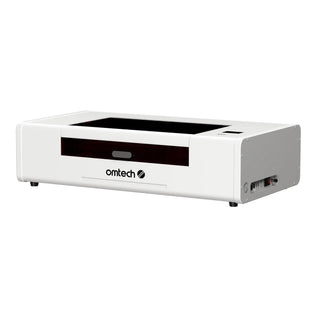
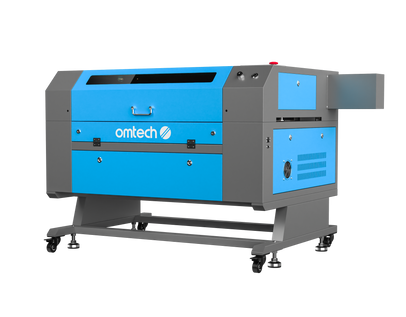
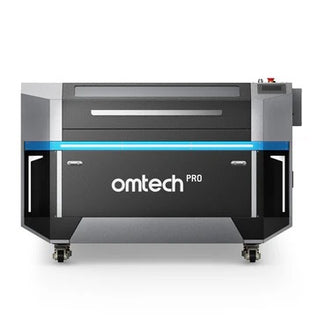
As the happy owner of an OMTech MF2028 60W CO2 laser engraver (and a 30W fiber unit too), I’ve been using my CO2 machine since March 2021. The learning process has definitely been real, but it’s also been genuinely fun to discover how many different things I can create with it.
With the holiday season around the corner, I wanted to make some handmade gift add-ons that feel a little more personal. For this simple and playful seasonal build, I’m making Christmas tags to give DIY gifts extra charm.
These holiday tags can be used in lots of ways: hang them on the tree, label stockings, or elevate your wrapping. They’re made to hang from the top loop of a stocking or from a gift bag handle. You can even tie one onto a ribbon bow on a gift box. And if you want, you can personalize them too. This project is also a great way to use leftover scraps to make keepsakes people will actually want to keep.
In this post, I’m sharing a clear, step-by-step walkthrough for making Christmas and holiday tags, including how to work in LightBurn, how to run a job using a Ruida controller, and other helpful basics. On my 60W machine, this project took roughly half an hour from start to finish.
Before you begin, make sure you’ve already handled your initial machine steps, including setup, mirror alignment, and a ramp test. If you’re still figuring out your starting settings, it can help to run test cards or download shared libraries to guide your first runs (you can find these through the OMTech Facebook group).
Laser Engraving Material List
To make these holiday tags with a CO2 laser, gather the following:
-
1 sheet of 1/8" Baltic birch for the top layer
- I paint it first, then mask it before cutting.
-
1 sheet of 5/32" maple
- I mask this sheet too.
- Super glue
- Ribbon / twine / string
You can absolutely swap materials based on what you like and what you have. Personally, I love the look you get when you pair a light top layer with a darker wood underneath, but you can choose any combo you prefer. I recommend using a thinner sheet for the top layer so the finished tag doesn’t feel overly thick, though it really comes down to your taste.
Masking Basics: How to Mask Wood for Laser Engraving
If you’re new to laser work and “masking” is unfamiliar, it’s simply a thin paper-style tape you apply over wood or acrylic. When you engrave or cut through the masking, you usually end up with cleaner surfaces and less char. Some people with upgraded air assist may skip masking, but I still use it because it gives me the cleanest finish. The downside is that masking can raise fire risk (especially on acrylic), so stay close to your machine and keep watch while it runs.
I mainly use 4075-RLA paper masking, and it has performed well on many woods, acrylics, and even laser-safe faux leathers I’ve tried.
Masking typically comes in big rolls. I’ve used both 6-inch and 12-inch rolls without any problems. To apply it, place your material on a flat surface, peel off about a 21-inch section of masking, then cut it using scissors or a utility knife. I intentionally keep it a bit longer than needed so I can trim or strip the edges later if I want. Next, lay the masking down on the material (I usually apply it from left to right) and smooth it down gently as you go. After it’s placed, use a card or a plastic scraper to burnish it so it bonds evenly to the surface.
One more benefit: you can paint, stain, or spray your wood first, allow it to dry completely, and then apply masking. That way, when you engrave and cut, you get crisp results with clean edges and no messy paint bleed.
The Basics: How to Laser Engrave Using LightBurn
LightBurn gives you a couple of paths. You can build a design directly in the software using basic shapes and installed fonts, or you can import a design file like an .SVG or .AI created in programs such as Inkscape or Adobe Illustrator. I personally do my design work in Adobe tools, then bring everything into LightBurn for final adjustments.
The sample projects shown here are available as downloadable files from the OMTech website, so you can follow along if you want.
Importing a Design to Laser Engrave
To bring a file into LightBurn that you saved elsewhere, go to File, then choose Import (as shown in the graphic).

The download includes some basic file guidance, so here’s a quick explanation of what each part means. Keep in mind that if you buy engraving files or download designs from different creators, file organization can vary a lot. Some designers include instructions, while others don’t.
Editable tags are the plain base elements I created so you can turn them into your own custom versions. You can add your own words, artwork, or photos—whatever fits your style.
Ready-to-go tags already have text combined into the design, so they’re essentially ready to cut. This also shows how the layers stack together visually.
Layer breakdowns show how you should separate the layers when you cut each material. When I set up a run, I try to reduce waste as much as possible, so I usually nest pieces as tightly as I can (check the photos for examples).
Also, although these designs are intended as two-layer wood cutouts, you can choose to engrave elements instead—or run an outline pass to guide placement—if you prefer.
There are three different ways to set up these files, and I’ll walk through each option.
How to Laser Engrave a Simple Outline
A basic outline pass traces only the outer edge of the top layer. To keep the laser from cutting through the material, your Line mode and power need to be set very low. One advantage is that it helps you position the top layer precisely, especially when you have many small pieces. Below is an example showing how the file looks and what the result looks like. On darker woods the outline can be subtle, but it still works as a placement guide.
So how does outline time compare to a full engrave? For the design shown, outlining and cutting took about 37 seconds, while engraving and cutting took around 4 minutes.

How to Laser Engrave a Cut-Out
This approach uses two separate layers cut from two different materials. Both layers should be set to Line, and both should be cut out.

How to Laser Engrave a Simple Engrave
This method uses one engraved layer set to Fill, followed by a Line layer that cuts the outer shape and the hanging hole. You might be wondering how engraving time compares to cutting time. It depends on your machine and settings, but on my 60W, engraving took about 4 minutes, while a cut-only version took around 2 minutes.

Here’s the quick timing breakdown:
- Outline + cut: 37 seconds
- Layered cut-out: 2 minutes
- Engrave + cut: 4 minutes
How to Use a Laser Engraver: Load Material and Cut
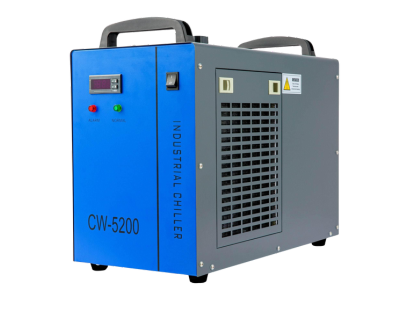
Before powering on your laser, switch on your water cooling system first and let it run for a minute or two. After that, power on the machine and let it finish startup.
Load your first material, and use strong magnets to keep it flat so it won’t shift or warp. You should also confirm your focus height and adjust the bed to the correct distance if necessary.
Start with the 5/32 walnut, and nest the design like the example graphic.

Once the material is in place, go back to LightBurn and click Frame. This shows where the design will run on the bed. If the position isn’t right, move the design, then hit Frame again to confirm.

Make sure you’re using laser settings that match your machine and the look you’re trying to achieve. I usually go to my library panel and pick the material preset I’m working with.
When placement looks good and your layers are set correctly, send the job to the laser. I prefer sending the job instead of pressing start directly in LightBurn because I’ve had USB disconnect issues mid-run that caused strange cutting behavior. That might be a Mac-specific headache, but I do it this way to avoid wasting materials.
On the Ruida controller, choose the file and start the job.

For the top layer, repeat the same workflow. I move any unused graphics off to the side and position only what I’m cutting into the target area. Load your top-layer material, confirm the artwork is placed correctly, and then send the job over again.
Assembling the Pieces
After both layers are cut on your CO2 laser, it’s time to put everything together. Since I masked both sheets beforehand, the first thing I do is peel off the masking.
Once both layers are unmasked, I move on to super glue. I’ve had great results with Starbond and Gorilla Gel. I apply small glue dots around the outer areas, and if the glue piles up too thick, I lightly dab it onto a paper towel before joining the pieces.
After I press the layers together, I put a paper towel on top and add a small weight so everything bonds evenly. In my case, I use a broken marble cutting board I already had.
I aim to let it cure for at least 30 minutes, and honestly, longer is usually better.
When it’s fully set, I remove the weight and thread in the ribbon or twine.
Sometimes I add extra details like wooden beads or tiny handmade bows, but that’s totally optional. Make the tags your own. And if you prefer watching instead of reading, you can also follow along with the video on the OMTech YouTube channel.
Laser Engraving Basics: Extra Tips & Troubleshooting
I did hit a couple snags during this project. The original text I used was too delicate and snapped, so I had to increase its thickness for durability. I also had spots where the masking didn’t stick well, which caused char on the white text.
If you run into the same kinds of issues, here are a few fixes you can try:
-
If your font looks too thin and breaks easily, add an offset to thicken it up.
-
If you get char marks, try cleaning with a magic eraser and a little water.
If you don’t have one, rubbing alcohol and a cloth can also help. -
Some people recommend white vinegar; I tested it, but it made my engraving look very faint.
Engraving results will change based on your speed/power, LPI (lines per inch), and the material itself. I often seal and finish wood, which can make it look darker overall. If you’re engraving darker woods, you’ll likely need to test and adjust settings until you get the contrast you want.
One extra note: if you engrave too deeply, you may see the engraved interior start to flake, so keep depth in check.
The Finished Result

This particular tag style is meant to wrap around the top of a stocking, adding a cute keepsake alongside other DIY gifts. The same file can also be used as an ornament or as a traditional gift tag. You can loop it around a gift bag handle to make the whole present feel more unique.
I hope this gave you a clearer sense of how to run a laser engraver from start to finish. If you want more step-by-step CO2 content, you can browse the rest of the engraving tutorials in the OMTech Resource Hub.
By Kristina S., Staff Writer & OMTech User
FAQs about Laser Engraving
1) Can you laser engrave at home?
Yes—you can engrave at home. A lot of modern laser machines are compact enough for home setups, and with a good ventilation or exhaust solution, home laser engraving can be done safely.
2) What do you need to do laser engraving?
To engrave with a laser, you’ll need a laser machine, a computer, design software, safety gear, and materials that are suitable for engraving. You’ll also need to learn the software workflow and follow safety rules every time you run the machine.